
Customer Support
How can I configure the firewall on my VPS server?
If you want to enable or manage the firewall on your VPS, beyond the default security rules applied at the infrastructure level, you can do so easily through the Papaki control panel.
Managing the Firewall for Your VPS
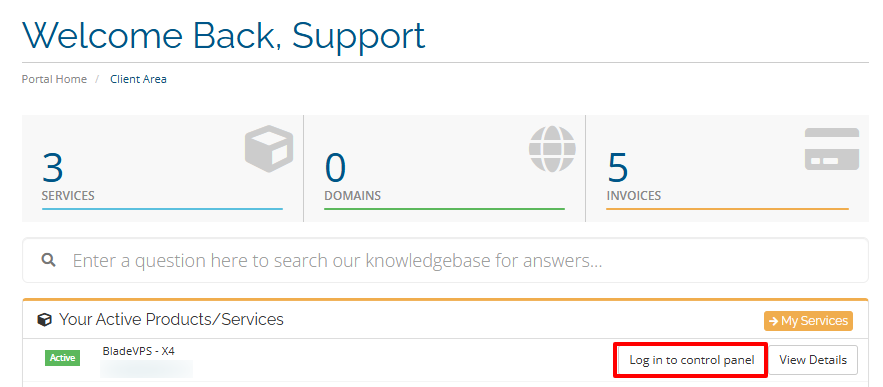
- Locate the VPS hosting package you want to manage from the menu in your control panel and click Log in to control panel.
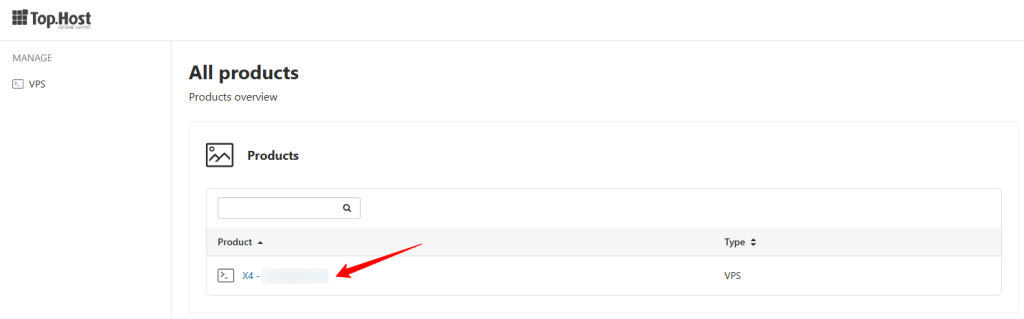
- Click on the desired plan
- Go to the Security tab and click on Firewall
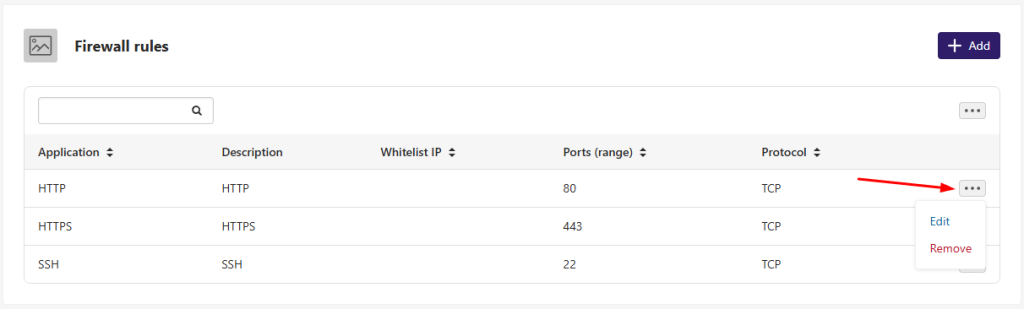
From the Firewall panel, you can:
- Enable or disable the firewall
- Add new rules
- Restore default settings via the three-dot menu
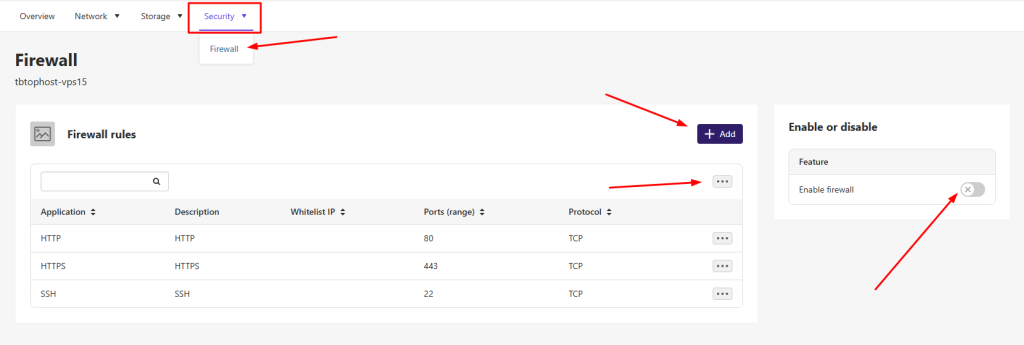
- Edit or delete existing rules by clicking the three dots next to each rule

Attention!
- The firewall service must be enabled for any rules to take effect.
- These settings apply to the external firewall layer, not to the server’s internal configuration.
Example: When Firewall Rules Don’t Match Server Settings
Let’s say:
- You define a rule allowing access to port 22 (SSH) only for specific IPs
- But you’ve changed the actual SSH port on your server to 2234
In this case:
- The firewall rule for port 22 won’t apply to SSH anymore
- Port 2234 remains unprotected unless you explicitly allow or restrict it via the firewall
Additional technical information
- The firewall feature is based on iptables and applies externally to your VPS. It does not affect any local firewall rules inside your server’s operating system (e.g. UFW, firewalld).
- You can define up to 50 rules at the same time.
- Rules can overlap. For example, a general TCP rule can coexist with a specific rule for port 443.
- If no rule is set, all incoming traffic is allowed. Once at least one rule is active, all other ports are blocked unless explicitly opened.
- You can use predefined rule sets (e.g. for cPanel, Plesk, DirectAdmin) or create your own custom rules by setting a description, IP whitelist, port range and protocol.
- With IP whitelisting, you can allow access only from specific IP addresses or CIDR ranges (e.g. 192.168.1.10 or 192.168.1.0/24).
- When restoring a snapshot or backup:
- If restored on the same VPS, the firewall rules remain unchanged.
- If restored to a different VPS, the existing rules of the destination VPS will remain.
- When transferring your VPS to another user account, the firewall rules are transferred along with it.
Default ports per OS or control panel
When enabling the firewall and selecting an OS or panel, the following ports are opened automatically. You can reset them anytime by clicking \"Restore default configuration\".
| OS / Panel | Ports | Protocol | Description |
|---|---|---|---|
| Linux / BSD | 22, 80, 443 | TCP | SSH, HTTP, HTTPS |
| Windows Server | 68, 546, 3389, 5353, 7680 | UDP / TCP | DHCP, RDP, Multicast DNS, Windows Update |
| DirectAdmin | 21, 22, 25, 80, 110, 143, 443, 465, 993, 995, 2222, 35000–35999 | TCP | FTPS, SSH, Email, Web, Panel, FTP Passive |
| Plesk | 21, 22, 25, 80, 110, 143, 443, 465, 993, 995, 8443, 8447, 8880, 49152–65535 | TCP | FTPS, SSH, Email, Web, Panel, FTP Passive |
| cPanel | 21, 22, 25, 80, 110, 143, 443, 465, 993, 995, 2082–2096, 30000–35000 | TCP | FTPS, SSH, Email, Web, Panel, FTP Passive |
| pfSense | 443 | TCP | Web GUI |
Note: If you use a preset for cPanel, Plesk, or DirectAdmin, only the panel's web interface ports are enabled. You need to add other required services (e.g. mail, FTP, HTTP) manually.
You haven't found what you are looking for?
Contact our experts, they will be happy to help!
Contact us