
Customer Support
How can I manage a backup of my VPS hosting package?
You can easily create and manage backups of your VPS server through your control panel. Backups are stored in the form of snapshots and refer to the entire server, not individual files or folders.
What You Need to Know
- A backup is a full image of the VPS at the time it was taken.
- Partial or file-level restoration is not supported.
- The system automatically generates daily backups at a predefined time.
A. Creating a manual backup (Snapshot)
If you want to create a backup (snapshot) at a specific time and name it for easier identification, follow these steps:
Steps:
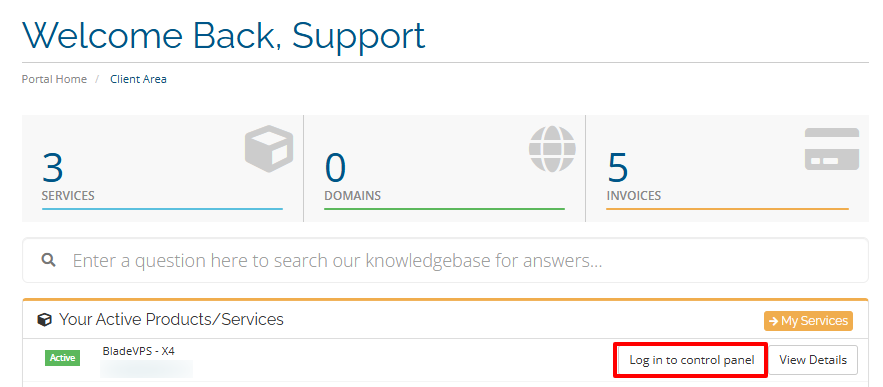
- Locate the VPS hosting package you want to manage from the menu in your control panel and click Log in to control panel.
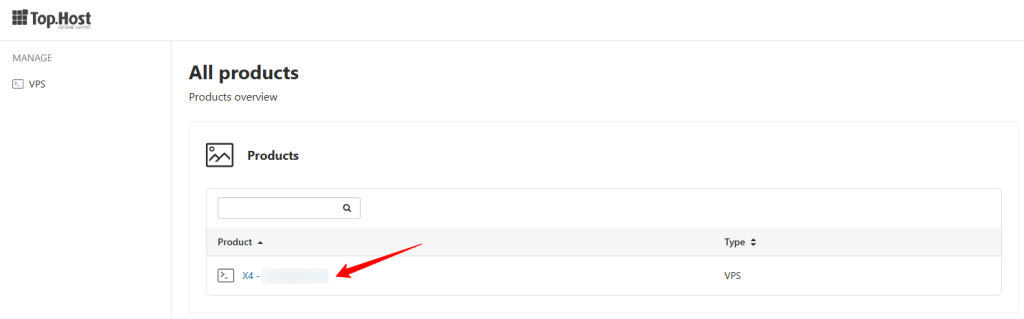
- Click on the desired plan
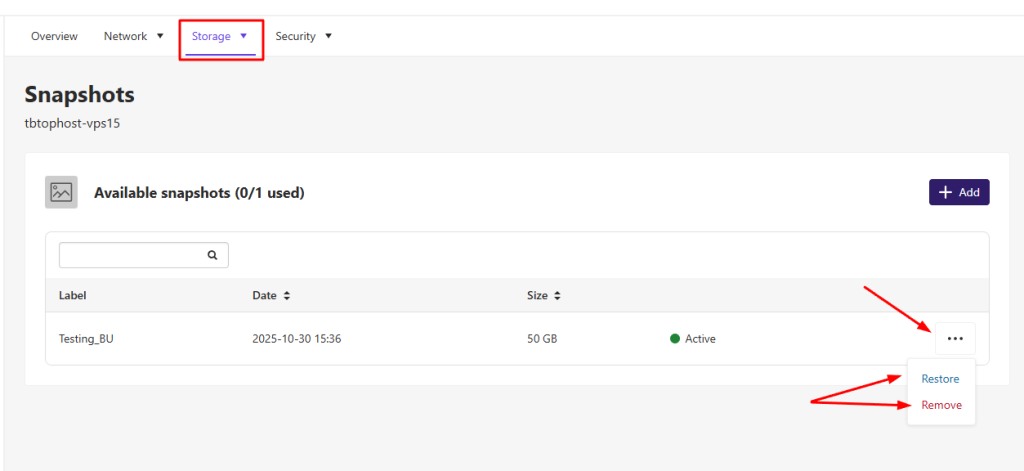
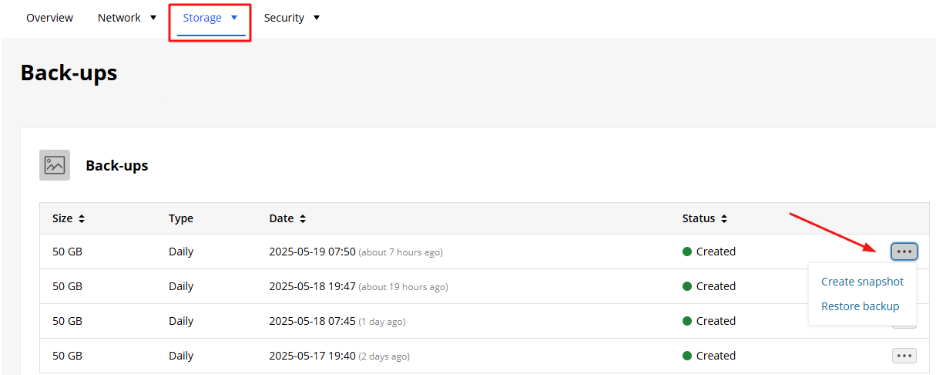
- Go to the Storage tab
From there, choose one of the following:
- Click Backups → then the three dots → Create Snapshot, or
- Click Snapshots → then select Add

B. Managing Existing Backups
You can manage both your manually created snapshots and the automatic system backups from the same section of the panel.
Steps:
- Locate the VPS hosting package you want to manage from the menu in your control panel and click Log in to control panel.
- Click on the desired plan
- Go to the Storage tab
From there:
- Under Snapshots:
- View all available backups
- Select Restore or Delete any image
- Under Backups:
- Click the three dots next to a backup
- Choose Restore Backup
Important!
- Any restore action will completely overwrite your current server content with the version stored in the selected backup.
- You cannot recover individual files or folders — restoration applies to the entire server state at the time of the snapshot.
You haven't found what you are looking for?
Contact our experts, they will be happy to help!
Contact us